Day 4
Intro to the CLI
intro-to-the-cli
At a glance
IOS-style modes (user EXEC, privileged EXEC, global config, interface/line submodes), navigation, help system, saving config, and baseline hardening patterns introduced with the lab. Maps to CCNA v2.0 objective(s) 2.4.
Deep chapter
Long-form companion reading (original prose).
Day 4 in context: the CLI is how you earn the truth
Every later topic—switching, routing, wireless, security—assumes you can move in Cisco IOS-style CLI without fighting the shell. Day 4 is not trivia about prompts; it is muscle memory for how operators gather evidence, apply changes safely, and recover when something goes wrong.
Treat the CLI like an industrial tool: read the label (the prompt), wear safety gear (enable secret, SSH, backups), and verify after each cut (show commands appropriate to what you changed).
What is a CLI?
CLI means command-line interface: a text-oriented control surface where you type commands (or paste them), read structured output, and iterate quickly. Cisco IOS evolved in the era of serial terminals, so the grammar is terse, hierarchical, and optimized for touch typists—not for mouse-first discovery.
Compared with a GUI dashboard, the CLI shines when you need repeatable change windows, diffable configs, low-bandwidth access over SSH, and precise diagnostics. Compared with APIs (RESTCONF, NETCONF), the CLI is still the lowest-friction path in labs and on small deployments; automation layers sit on top later in your career.
The mental model is conversational: prompt + your verb + arguments + Enter; the device answers with human-readable text, tables, or errors. Speed comes from muscle memory, not from memorizing every knob on day one.
How to connect to a Cisco device?
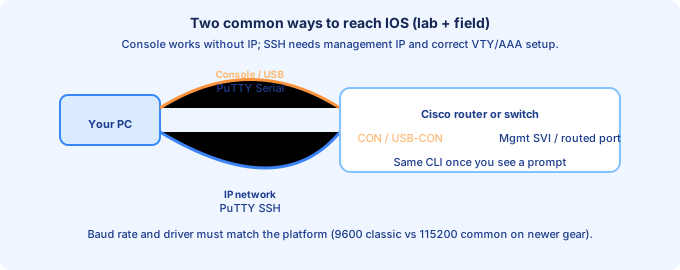
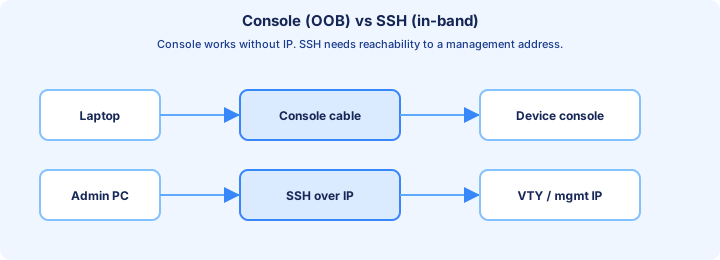
First hop is almost always out-of-band console: a USB or RJ-45 console port on the chassis that speaks serial (or USB-CDC) to a terminal emulator on your laptop. No IP addressing is required on the router for you to get a prompt—ideal for bootstrap, password recovery, and fixing VTY mistakes.
Once management IP, routing, and SSH are configured, you connect in-band over the network: SSH (preferred) or legacy Telnet in older labs. That path depends on correct L2/L3 reachability, VTY lines, local or AAA users, and a host key.
Document both paths in your lab notebook: which COM port Windows assigned, which baud rate worked, which SVI or loopback you SSH to, and what username owns privilege 15.
Terminal Emulator (PuTTY)
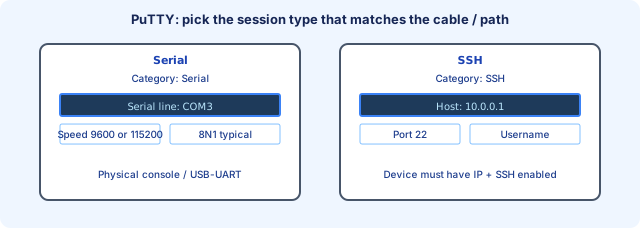
PuTTY is a common Windows terminal for both Serial (physical console) and SSH (network) sessions. Create separate saved sessions: one with Connection type Serial (pick the COM port Windows Device Manager shows), another with Connection type SSH (host = management IP, port 22 unless changed).
Serial settings are device-specific: older Cisco defaults often used 9600 baud, 8 data bits, no parity, 1 stop bit, no flow control; many modern platforms ship 115200—if you see garbage characters, swap baud first before chasing “dead” hardware.
For SSH, accept host keys on first connect in a trusted lab; in production you verify fingerprints out-of-band. Window title, font size, and scrollback are quality-of-life settings you set once and reuse.
User EXEC mode
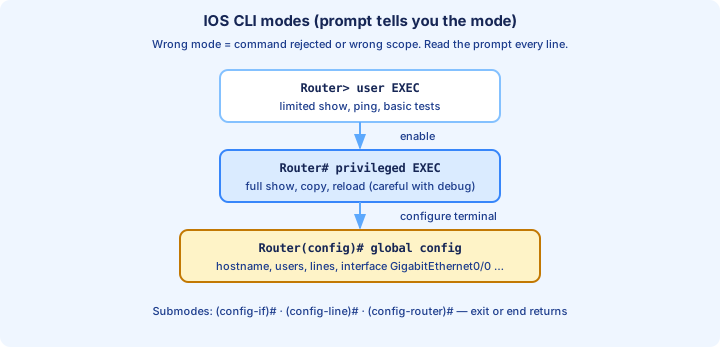
Prompt ends with `>` (for example `Router>`). This is User EXEC: a limited view where you can run basic tests (`ping`, `traceroute`), some informational `show` commands, and `enable` to climb into privileged mode—but you cannot change configuration here.
If you try `configure terminal` at `>`, IOS rejects it: you are not privileged yet. That guardrail protects casual console viewers from rewriting routing policy.
Use User EXEC as the default landing zone for unauthenticated console scenarios in old lab designs; in hardened labs you still land here briefly before local login elevates you.
Privileged EXEC mode
After `enable` and a successful privilege password, the prompt becomes `#` (for example `Router#`). Privileged EXEC unlocks the full diagnostic vocabulary: broad `show` output, `copy`, `reload`, `debug` (dangerous), file listings, and the doorway into configuration via `configure terminal`.
Think of `#` as “read/write to the device’s state and files, but configuration changes still require entering config modes.” Mis-typing in `#` can still reboot the box or erase storage—speed without paranoia is how outages happen.
`disable` drops you back to User EXEC; `logout` or `exit` ends the session depending on context—practice both until the behavior feels predictable on your image.
Cisco IOS CLI shortcuts
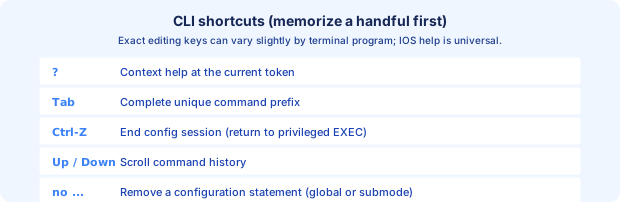
`?` anywhere you are stuck: IOS prints valid completions at the current cursor position. That single character is the fastest documentation on earth when you forget whether a keyword was `speed` or `duplex`.
Tab completes a unique prefix; if multiple commands match, IOS prints a reminder list. Up/Down arrows walk command history; many engineers lean on history for long interface names.
Ctrl-Z ends configuration from any submode and returns to privileged EXEC (`end` does the same in one command). `no` in front of a configuration statement removes it; `logging synchronous` on the console line prevents syslog from chopping your half-typed command in half during noisy boots.
Some terminals map Ctrl-C to abort a running command (like a long `ping`); behavior can differ by emulator—know how PuTTY treats it before you rely on it in a change window.
Global Configuration mode
From `#`, `configure terminal` (abbreviation `conf t`) enters global configuration with prompt `(config)#`. Here you set system-wide knobs: `hostname`, `username`, `ip` commands that are not interface-scoped, routing process activation, `line` defaults, and so on.
From global config you descend into submodes (`interface ...`, `line ...`, `router ...`) where the prompt changes again; `exit` walks up one level, `end` or Ctrl-Z jumps back to `#` immediately.
If a command is rejected as “invalid” in global config, you may be trying to type an interface-only directive—enter the proper interface submode first.
The `enable password` command
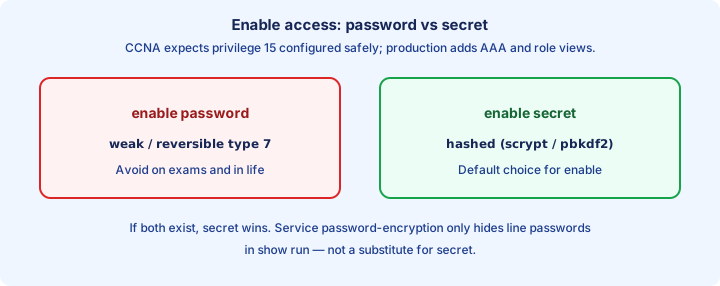
`enable password` stores a privilege-15 password using weak reversible Type 7 “encryption” (really obfuscation) on many classic IOS behaviors, or cleartext in worst-case lab paste jobs. It exists for backward compatibility and courseware that still demonstrates legacy patterns.
If `enable secret` is also configured, secret wins for validation—exams love that precedence story. In production and in any new lab you write yourself, prefer `enable secret` and treat `enable password` as a historical footnote you can read in old `show run` outputs.
Seeing `enable password 7 104D000A0618` in a config should trigger a hygiene thought: rotate to `enable secret`, audit who can read startup-config, and move toward AAA-backed privilege.
`running-config` and `startup-config`
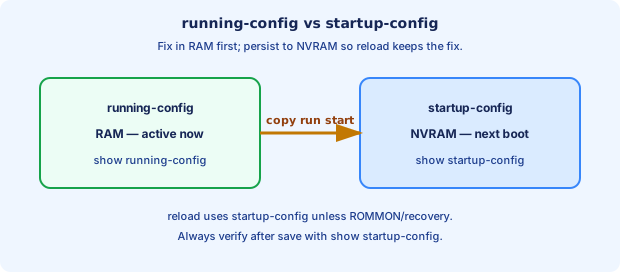
running-config is the live configuration in RAM—the device’s operational truth right now. startup-config is the NVRAM file that loads into running-config on boot. They diverge the moment you change something without saving.
If you fix an outage in running-config but never persist to startup, a maintenance reload resurrects the broken baseline—tickets reopen, bridges get burned. Always pair change with verification: `show running-config` for intent, `show startup-config` for persistence.
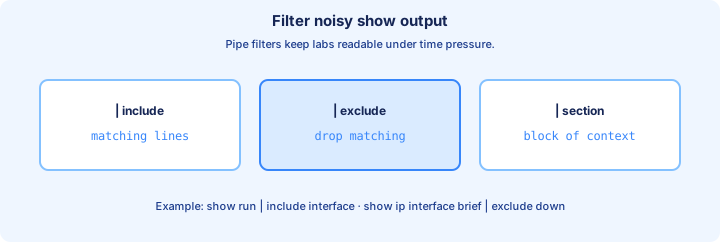
Large outputs reward filters: `show running-config | section line vty` or `| begin router ospf` to avoid pager fatigue.
Saving the configuration
The textbook save is `copy running-config startup-config` (spoken “copy run start”). Older docs and muscle memory still say `write memory` or `wr`—same outcome on traditional IOS: merge running into startup.
After saving, spot-check: `show startup-config | section hostname` (or another canary line) to prove the file moved. In change windows, some teams also archive to TFTP/FTP/SCP for diffable history—beyond CCNA core but good hygiene.
Never assume auto-save: there is no Google Docs cloud sync on a switch.
The `service password-encryption` command
`service password-encryption` tells IOS to display certain line passwords and similar secrets using Type 7 obfuscation in `show running-config` instead of cleartext. It is a mild obfuscation layer for shoulder-surfing and casual log leakage—it is not a substitute for proper hashing on privileged credentials.
It does not turn `enable password` into a cryptographically strong secret; `enable secret` still uses stronger algorithms. Think of `service password-encryption` as tidying the living room, not installing a vault door.
If you toggle it off after relying on it, expect previously hidden passwords to display differently—avoid flipping it during active demos unless you understand the display change.
The `enable secret` command
`enable secret` stores a one-way hash of the privilege password using the best default algorithm the platform supports (details vary by IOS/IOS-XE). For new builds, this should be your default enable mechanism.
If both `enable password` and `enable secret` exist, IOS uses secret for enable checks—troubleshoot “wrong password” by checking which line actually governs and whether you are typing the secret value, not the old password value.
Pair with strong local users (`username … secret …`) for console/VTY `login local`, then evolve to AAA when your organization requires centralized auth and accounting.
Canceling and deleting configuration commands
Negate a directive with `no` in front of the same statement at the same configuration level: `no shutdown`, `no ip address 10.0.0.1 255.255.255.0`, `no banner motd`. IOS removes that line from running-config; remember to save if you want the removal to survive reload.
Some platforms support `default interface Gi0/1` to snap an interface back toward factory defaults—powerful and sometimes destructive; only use it when your lab explicitly teaches it.
Ctrl-Z (or `end`) abandons the config hierarchy back to privileged EXEC without per-level `exit`—fast, but easy to lose track of half-applied stanzas if you do not verify with `show run`.
There is no universal “undo” buffer like Ctrl-Z in a word processor for every IOS command—your rollback plan is `no`, `copy` from archive, or reload from known-good startup.
Console and VTY lines: where login actually attaches
line console 0 governs the physical/USB console session. line vty 0 4 (or 0 15) governs inbound Telnet/SSH sessions. login local makes the device consult local users; login with password line under line con 0 is older lab style.
transport input ssh (or ssh telnet during migration) on VTY lines is standard hardening. exec-timeout 5 0 on console and VTY reduces abandoned sessions. An access-class applied to VTY can lock you out if the ACL forgets to permit your management subnet—apply from console first.
crypto key generate rsa general-keys modulus 2048 (or platform-specific named key commands) is prerequisite material for SSH on many images; ip domain-name sets the FQDN used in the key label on many platforms—order and exact syntax follow your lab image; some boxes let you generate keys first, but if SSH refuses to start, verify domain-name and modulus requirements in the error text.
Interface hygiene before switching deep dives
interface GigabitEthernet0/0 (exact name from show ip interface brief) → description text → ip address when needed → no shutdown. Router WAN ports default administratively down; forgetting no shutdown is a classic “routing does not work” red herring.
After editing an interface, verify in privileged EXEC: show ip interface brief and show interfaces GigabitEthernet0/0 | include line protocol (or the counters section your course emphasizes).
Show commands you will actually run on the job (starter set)
Operators spend more time reading than writing. The table below is a compact field kit: not every platform prints identical columns, but the intent survives across routers and switches.
| Command (privileged unless noted) | Typical platform | Why you run it on the job |
|---|---|---|
| show version | All | Uptime, IOS/XE version, serial/model, memory headroom—first snapshot on any ticket. |
| show running-config | All | Authoritative view of what is live; diff mentally against expected baseline. |
| show startup-config | All | Confirms what survives reload after a change window. |
| show ip interface brief | Router / L3 switch | Fast map of which interfaces have IPs and whether line protocol is up/up. |
| show interfaces Gi0/0 (or range) | All | Counters, errors, duplex/speed clues when a link is flaky. |
| show interfaces status | Switch | Access-layer triage: connected/notconnect, speed/duplex, assigned access VLAN. |
| show ip route | Router / L3 | Routing truth table; pair with ping to next hop for isolation. |
| show ip route x.x.x.x | Router / L3 | Longest-match choice for a destination without mentally ANDing masks. |
| show arp | Router / L3 | Who does this router think is at which MAC on connected subnets? |
| show vlan brief | Switch | VLAN existence and SVI presence at a glance. |
| show mac address-table dynamic | Switch | Where is this MAC learned? Unknown unicast flooding troubleshooting. |
| show spanning-tree summary | Switch | Loopguard of STP health; blocked ports on uplinks after topology changes. |
| show cdp neighbors detail | Cisco | Discovery, management addresses, native VLAN hints on trunks—document before you touch. |
| show lldp neighbors | Cisco + multivendor | Same discovery story where CDP is off or non-Cisco peers. |
| show logging (pager / filter) | All | Correlate errors with interface flaps, STP, OSPF neighbor drops—use include or section on busy boxes. |
| show clock | All | Align syslog timestamps with change tickets and external monitoring. |
| show processes cpu sorted | All | CPU spike hunting—interpret cautiously; short spikes can be normal. |
| ping / traceroute (extended options) | All | Source-interface and size/TOS tweaks isolate asymmetric paths and MTU issues. |
Filtering show output (parse fast, scroll less)
Long outputs hide the needle. IOS supports piping: | include string, | exclude, | begin (start display at first match), and | section (paragraph-style blocks on modern images). Learn one pattern deeply—many engineers live inside | section interface or | section router ospf.
Redirecting to a file on flash or scp/tftp is a change-window trick on real gear; labs often stick to screen filters.
Basic device hardening checklist (Day 4 lab themes)
hostname, banner motd / login legal text, enable secret, username … secret, line con 0 / line vty 0 15 with login local, exec-timeout, logging synchronous on console, transport input ssh on VTY, crypto key for SSH, service password-encryption as a belt-and-suspenders (not a replacement for secret), and verify from a jump host.
Each step has a foot-gun: SSH only with no local user → lockout; VTY ACL without console rescue plan → truck roll; wrong clock → confusing logs when correlating with SIEM.
Dangerous commands and rollback reflexes
reload, write erase / erase startup-config, configure replace, and blanket debug ip packet can end careers or at least your weekend. Before reload, confirm startup-config matches intent. Before erase, archive or copy run tftp://… if policy allows.
If you must debug, use specific conditions (ACL-based debug, interface-specific debug) per your advanced coursework—never start with the widest firehose on a production path.
Study loop for CLI days
10 minutes: blind-type navigation (enable, conf t, interface, line vty, end, wr) on a blank device. 10 minutes: fix a three-line deliberate fault (shutdown, wrong enable, missing login local). 10 minutes: read someone else’s show run aloud and narrate what each stanza does. This loop beats passive rewatching.
Bridge into Ethernet switching (Days 5–6)
Once prompts, save discipline, line security, and the starter show toolkit are automatic, switching labs become about evidence: MAC tables, VLANs, STP—not about where the # went.
Key ideas
- running-config vs startup-config: volatile vs retained across reload.
- Prefer SSH; control who can access VTY lines; banners for legal/operational notice.
Self-check
- What command class shows diagnostics vs configuration changes?
- After changes, what must you do so they survive reboot?